Lesser known truth of Kamasutra 3D

Lesser known truth of Kamasutra 3D......

Tamannaah lost 5 kg for 'Humshakals'.

Tamannaah lost 5 kg for 'Humshakals'.

Sunny Leone: People will See my nerdy, wacky side upon Splitsvilla.

Sunny Leone: People will See my nerdy, wacky side upon Splitsvilla.......

Box-office survey: Heropanti likes some sort of 25cr end of the week.

Box-office survey: Heropanti likes some sort of 25cr end of the week.

Shruti Haasan finds love

Shruti Haasan finds love.

Showing posts with label WINDOWS 7. Show all posts

Wednesday, 16 October 2013

How to Dual Boot Windows 7/8 and Ubuntu

Most of the users only use Windowsor Mac OS or a Linux based operating system . If a user wants to use both Windows and Linux OS in their PC or Laptop . Then this tutorial helps you a lot Ubuntu is a Linux based operating system with good interface and suggested for beginners . In this tutorial I will be discussing about how to dual boot both Windows and Ubuntu in your computer.

Steps to dual boot Windows and Ubuntu:

Follow the below steps to dual boot with Windows and Ubuntu .Ubuntu provides a Wubi which is a windows installer for Ubuntu desktop . 
  • First visit Ubuntu website to download wubi here. 
  • Click on Get the installer as shown below.
  • Now it shows you to pay $2 for each column as shown below .
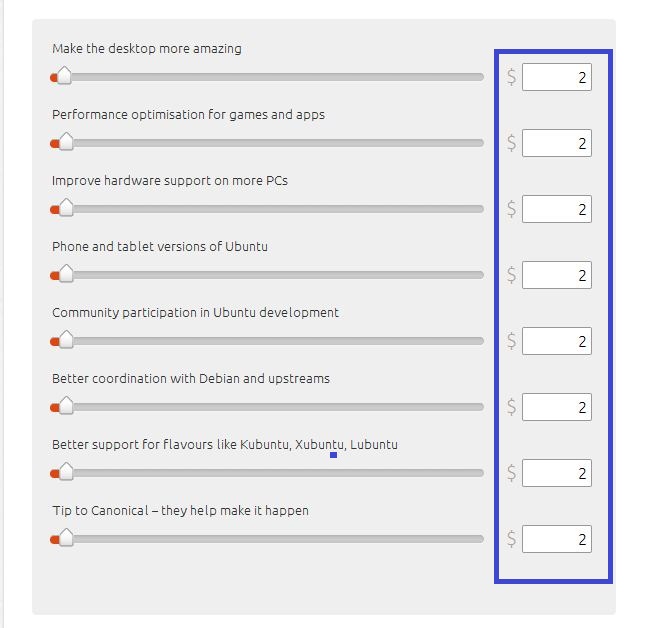
  • Change this to $ 0 by just sliding the bar to left and finally it appears as shown below . Now click Download and file will be downloaded fast as its size is 2.4 MB.
  • After downloading the file , double click on wubi.exe and a pop-up arises asking for permission click Yes.
  • Next a Ubuntu installer appears and   now select the drive to install it , select installation size by default it gives 18GB , select environment as Ubuntu and finally set your username and password to login as in windows . If you feel any difficult then it appears as shown below . 
  • Then click Install and it takes about 15-20 min to install the Ubuntu OS into your Computer .
  • Once it gets installed Select on Reboot now and click finish (Now it gets restarted ).
  • After restarting the PC or Laptop you will find screen like this.
  • Select Ubuntu by using down or up arrow in your keyboard and click Enter .
  • Then the following screen appears , select Ubuntu ,Linux -generic 1st option from the 3 options using arrows from your keyboard.
  • Again it installs the main components required and packages. This might take a few minutes .
  • Next you will notice a Login screen asking user name and password , Type the username and password which you have selected above .
  • Then click login and you will get a good interfaced Ubuntu Desktop.
Also Check: Update Drivers in Windows 7 and Windows 8

if you have any questions or any problem while following any of above steps let us know in the comments below we will help you

About Author:

Lalith is an 2nd year engineering student.He is interested in writing about technology,computers,blogging,you can follow him on facebook

Friday, 4 October 2013

How to Create Wifi Hotspot in Windows 7 and Windows 8 -Best ways

If you are one who looking to convert your PC as Wifi Hotspot then you are done.Here in this article We listed best 2 ways to convert your laptop as Wifi router.Once you turn you PC as WiFi router you can connect devices such as Android, another laptops etc.


Advantages of converting your laptop to a wifi router.

  • You can Enjoy internet in your wifi devices, any where you want but depend on your laptop wireless range.
  • Get rid of sitting at one place with wired internet connection.
  • If you have smart phone then you can get access to internet on your mobile.
There are numerous of method to turn your laptop a wifi spot (Windows 7 and 8 only),
Such as By command promote (only in windows 8) and by installing 3rd party software compatible with both.
Must Check: Talk to your Computer

First Method-

You need to follow below steps care fully in order to make your laptop wifi router successfully.
Step.1: Open run (windows key+R), type ncpa.npl.

Step.2: A new window is in front of you. There select wireless Network adapter and sharing center and select properties.
Step.3: In wifi properties Select share, followed by Allow Others Network users to connect.
Note- Never Tick 2nd Option.
Step.4: Now Open Command Promote As administrative.
Step.5: Don't worry by looking in below Command promote codes in picture, those are very simple.
             You need to copy and paste below command in command promote.
"netsh wlan set hostednetwork mode=allow ssid=”techbymak” key=”techbymak”"

You will see SSid which is actually your network name, which we are going to create.
Step.6:Now you need to start the network By using below command.
"netsh wlan start hostednetwork"
Every thing is done. Now you can observe your laptop is working like a router.
Note:To check How many Devices Are connected to your router you need to enter below command in command promote.
"netsh wlan show hostednetwork"
This was the first method to make your laptop a router.

Second Method:

We are using a Software in this method to make laptop Wifi router, this method is compatible with both windows 7 and 8.The name of the software is Virtual Router.Download the software and install it.( once you downloaded it will come in zip format so extract it)

When you have done all these make sure are connected to the network you want to share and then launch VirtualRouterPlus.exe.
Remember - Run the .Exe as administrative.

Let's Create A Network.

  • In this method we are using Virtual router so it is essential to create a new network.
  • It is similar to 1st method, here SSid also means the name of the network which we are creating, you can enter what you want.
  • If you want you can enter Password, it is important to prevent others to use your internet service. 
  • Now here you need to indicate which network is to be shared and then click on start Virtual Router.
I hope you guys like the article and feel useful for you .If you have any problem in above steps feel free to comment below we ill help you out.
Also Check: Turn Android as Wifi Hotspot

Wednesday, 25 September 2013

How to Update Hardware Drivers in Windows 7 and Windows 8

Want to Update all your Hardware Drivers on a Single click ? Here is a Free Solution from Slimware utilities.

SLIMDRIVER , apart from windows OS updates ,hardware driver updates are also important for the smooth functioning of PC,we often think that our hardware drivers such as display,Audio&sound,Network,Motherboard,Usb are up to date but it is not the case for most of the windows users.

Well there are many other software available on net to update your hardware drivers among all of them SlimDrivers is the best,free & user friendly . It is compatible with windows xp,7,8 vista. it is just a simple 3 step process.

Step by Step process:

Step: 1

Download and install the software from cnet.com here is the download link

Step: 2

Now open the Slimdriver from windows start button and click on START SCAN the software will check the hardware components and it will search for the latest hardware drivers from the manufactures website 
step 2

Step: 3

Now the SlimDriver will list the all available hardware updates according to the hardware category now click on  download update corresponding to each driver update the Slimdriver will automatically download the update from the official site 
it is preferred to create a restore point( a dialogue box will appear) and then reboot your system after installing hardware update.


SlimDriver will be a very hand tool for those who use laptops ,where  there is  need to update WiFi,Bluetooth , Graphic , USB , webcams  drivers it is the leading software tool under update category in CNET , Brothersoft , Softonic and many other sites .It is a free tool so our recommendation is to give it a try and see the result.

Also Check: How to Improve System performance

If you any doubts/problems while updating drivers comment below we will help you out and dot forget to share this article with your friends.

Monday, 9 September 2013

Top 5 Free Best Antivirus for Windows 7 PC (Download)

Antivirus i think there is no need of explanation for this word.It protects your computer from various spyware,rootkits and virus.So every one things to have best antivirus for there computer. keeping this in view we listed the top 5 best free antivirus for windows 7. Go through the list below and choose the best one suits for your PC or laptop.


1.Microsoft Security Essentials:

Its is the one of best antivirus.using microsoft security essentials is one of best way to protect your computer form various malicious attacks and virus.it is absolutely free and has very user friendly interface.if you have geniune windows it automatically install update.
Some features:
  • Fast,easy to download
  • Malware detection
  • Regular updates
  • Free for download

2.Avast Free Antivirus:

Avast is one of best antivirus.it provides complete virus protection for your computer.it is free to download.
Some features:
  • virus detcion
  • identity theft
  • protect you form hackers(phising)

3.Avg free Antivirus:

Avg antivirus was really a good so\fwtaree that protect your computer from all kinds of virus.during starting days there was fale inforamtion after 3 months it wil create virus but it is absolutely false.they aging relaedt there enw version whcih is impresive and user freindly.it si free to dwonload

                Also check: Best Antivirus for Android mobiles

4.Panda Cloud Antivirus:

Panda antivirus is come from cloud antivirus security. it is bvery useful for scaning your computer and for detction of virus.the best part of antivirus come here it runs automatically in background so you don't need to do manual scan.

5.Avira Antivir Personsal:

This is one of best anti virus.it is available for free download.it works perfectly to detect virus rootkits and spyware.

 Also check:

Thursday, 8 August 2013

How to Add Pattern Lock for Windows 7 and Windows 8

Are you bored with your default password system on your windows computer then this post is absolutely from you. You can enable the Pattern Locking system which is usually found on smartphones to unlock, on your windows 7 and windows 8 PC.You need not to worry about the security of your system with these pattern locking systems.


Also Check: How to Add Pattern Lock For Iphone

Here we have tested two pattern locking tools on our computers and felt wonderful with the tools.

1.XUS Pattern Locking Software:

This a best tool for locking your windows 7 and windows 8 pc with the pattern locking system.This tool has many features like:
XUS-Pattern-Lock
  • You set a Alarm when there are incorrect login attempts on your computer.
  • You can select the no of points for locking your windows.
  • You can set a transparent windows or a default windows.
  • You can enable or disable the Pattern locking on the windows startup.
  • You can Turn off the Internet when locked.
  • You can backup the Pattern Lock to your local drive in the form of image file.
  • You can set a costume message on the lock screen.
  • You are advised not to forget your pattern lock. It is good and best option to add the password too to unlock the system.
  • This tool available for free trail from here.
Each license costs 20$. 
This tool is compatible with Windows XP,Windows 7 and Windows 8

Must Check: Best Antivirus for Windows 7 and Windows 8

2.Eusing Maze Lock:

This tool too has all the features of the XUS Pattern locking system. This tool is available  for free. You can this tool from here this is the best alternative to the xus pc locking system.
This tool is compatible with Windows XP,Windows 7 and Windows 8.
  • You can find many other features like setting time for automatic lock and some cool features.

3.Using Windows 8 Inbuilt Picture Password:

Windows8-Piccture-password
Windows the powerful operating system form Microsoft had many best hidden features one of them is Picture password. Unlike the pattern locking system on smart phones, picture password asks for the specific area to be selected as password or pattern on the picture to unlock the system.
If you want to try the Windows 8 Picture password just enter the Picture password in the start menu, and hit on the "Change or create a picture password" then you will be able to create you own pic password on your own picture.

Windows8-Piccture-password

Must Check: 10 Tips to make Windows 7 fast